

Manual Microsoft 365 Family
Attributes:
- If you only want to renew your subscription you do NOT need to download and install the software again.
- Microsof 365 Family is a multi-user subscription. One user is the administrator.
- You enter the license key once in the administrator's Office account. All subsequent actions (e.g. invite other users or download the software) you perform from your account at www.office.com
- Only the administrator can renew the subscription for everyone, and only the administrator can invite other users.
- Other users invited by the administrator have their own account on www.office.com. From the own account, each user can download the software themselves.
Content
1. Create an Office account2. Login to your Office account
3. Activate the license
4. Download the software
5. Invite other users
6. Support
1. Create an Office account
You manage your Microsoft 365 subscription yourself in an account at www.office.com. Do you already have an Office account? Go to step 2.
Do you have a Microsoft account? For example, an @outlook, @live or @hotmail email address? Then you can already log in directly www.office.com, go to step 2. Don't have an Office or Microsoft account yet? Then go through the following steps:
- Go to https://signup.live.com
- Enter your own email address. For example, this can be a Gmail, Yahoo or other email address
- Set a password
- Enter your information and follow the instructions
2. Log in to office.com
- Go to https://www.office.com
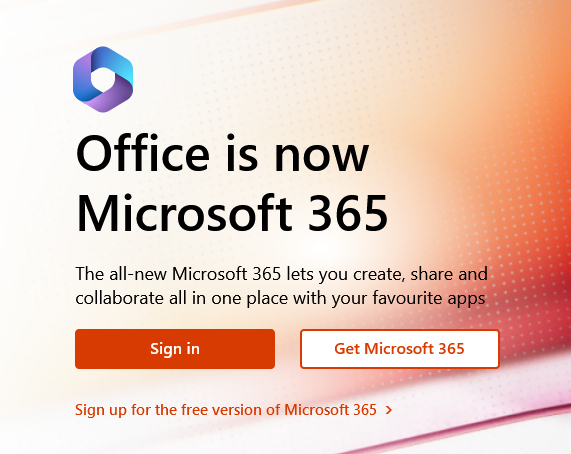
- If you are not already signed in, you will see the options 'Buy Office Buy' and 'Sign in'. You click on 'Sign up. Sign in your with Office account.
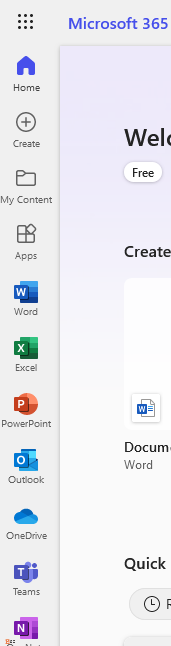
- When you are signed in, you will see a list of the apps that are part of your subscription
3. Activate the license
You have received a license key from us. Microsoft sometimes also calls this "product key. That can be confusing, in this case, these terms mean the same thing.
- Go to https://www.office.com/setup
- Click Next
- Enter your license key (Microsoft calls it 'product key' on this page)
- You can copy/paste the code in its entirety, this will prevent typing errors.
- Be careful not to copy spaces before or after the code.
- The 'admin code' in parentheses is for our own administration, you do not need it.
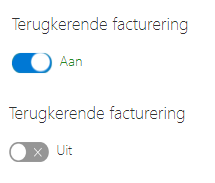
Please note! By default, Microsoft will check that you will auto-renew. This is very expensive and you better turn it off. - Click 'Next'
- Click 'Next' again under 'Step 3: Download Office'. The software will not be downloaded yet, you will only be redirected to the download page.
4. Downloading the software
Uninstall old version
.- Do you already have another version installed on your computer? Please uninstall it before installing the new version. You can read how to do that at this Microsoft website.
- It is of course possible to install the software on a new device, or on a device from which the software has been removed, after a crash, for example.
- Not all programs are available on all devices, please check the system requirements.
Windows computers/Mac computers/
- You log on to https://account.microsoft.com/services/ and click on 'Install'. The installation file is downloaded.
- If it does not start installing automatically, locate the downloaded file and click 'Run'
Android tablets / iPads / Smartphones / iPhones / Chromebooks
. On these devices, you can download the individual programs (Word, Excel, etc.) as separate apps. You first download the app, and then log into the app with your Office account.- Go to the App store or google Play .
- Download the desired app(s)
- log into the app using your Office account.
5. Invite other users
If you are logged in as the main user/administrator at https://account.microsoft.com/services/ you will see a button there 'Share'. If you click this you can enter the email address of a new user and send an invitation.
The new user can accept the invitation. The new user cannot invite other users or renew a current subscription, only the administrator can do that. A user can download the software from the user account. ...
6. Support
For problems that may occur during the installation you will find solutions on this Microsoft website.
For installation assistance and further support, please contact Microsoft's support department:
https://support.microsoft.com
Microsoft Support Netherlands: 020-5001500
Microsoft Support Belgium: 02/503 31 13